

Make a Photo Background White Online
Use our AI white background maker to change any image background to white. Upload a photo, remove the original scene automatically, and add a clean pure white background.
PNG, JPG, JPEG, or WebP · up to 10 MB · preview the result before download
Upload an imageDrop a PNG, JPG, JPEG, or WebP image here, or choose a file.Choose imagePNG, JPG, JPEG, or WebP · up to 10 MB
Use our AI white background maker to change any image background to white. Upload a photo, remove the original scene automatically, and add a clean pure white background.
PNG, JPG, JPEG, or WebP · up to 10 MB · preview the result before download


Three simple steps
How to Make a Photo Background White
Upload a photo, remove the original background, and download a clean white-background image in three steps.
- 01

Upload Your Photo
Choose a product image, portrait, or everyday photo in a supported format.
- 02

Remove the Original Background
AI detects the subject, removes the existing scene, and replaces it with white.
- 03
Preview and Download
Check the edges, crop, and spacing, then save your finished image.
A reusable starting point
Start With a Clean Asset for the Next Step
Drag the divider to see how a white background creates a neutral version of your image before you place it in a catalog, profile, document, or design layout.
Drag the divider, use the arrow keys, or press Home and End to compare white background and original photo.
Original photo

White background

Why start with white
- Create one neutral version before choosing a marketplace, profile, document, or layout.
- Keep a flexible image asset when the final layout may need space around the subject.
- Use the white version as a starting point before deciding whether transparency or another background is the better final choice.
Result quality
See the Results in Action
Compare an original photo with its white-background result, then use the review checks below before you download.

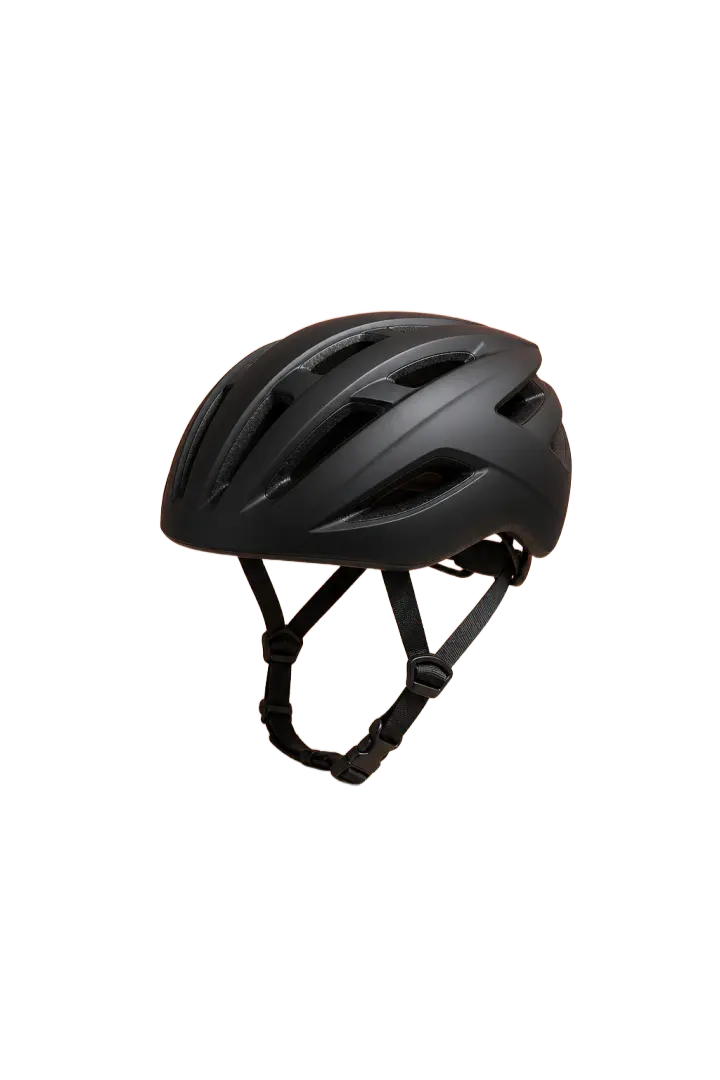
Review 01
Keep attention on the subject, not the old scene.
Review fine outlines, small details, and the boundary around the subject before using the finished image.
- Clear subject separation
- Complete visible outline
- Clean white field
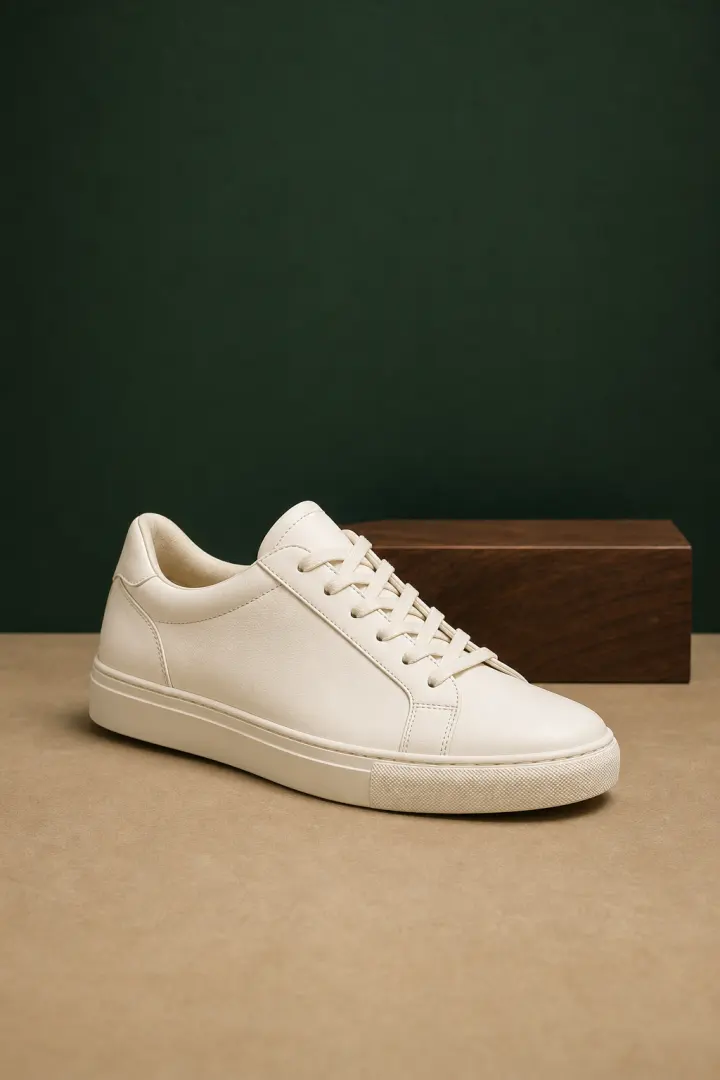
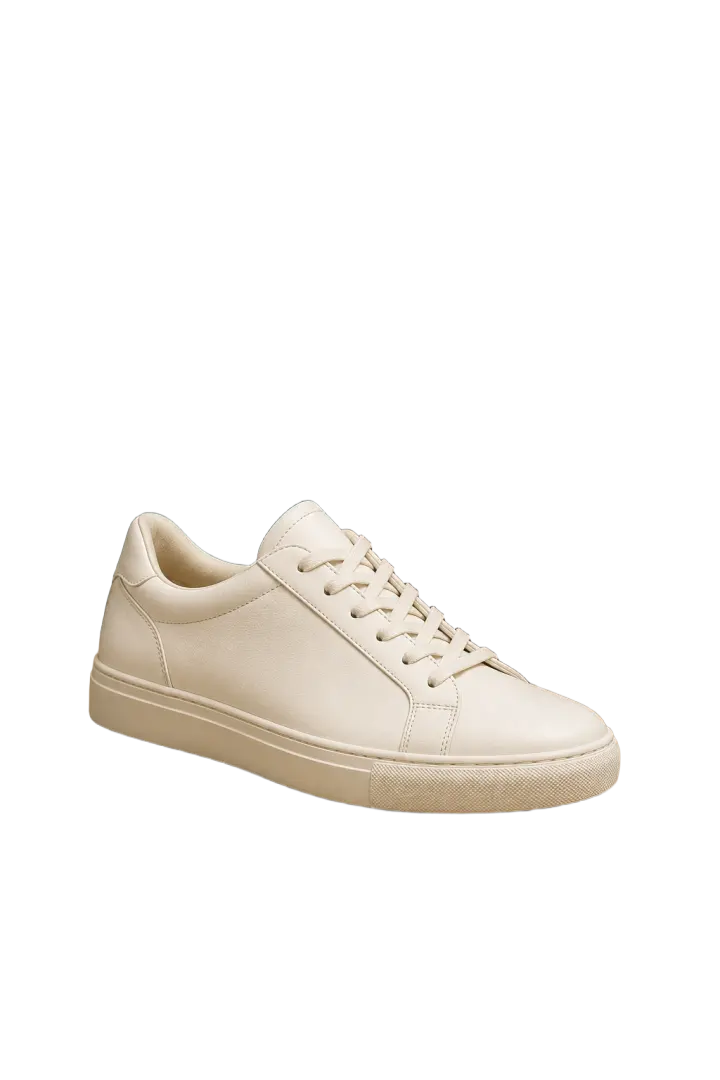
Review 02
Inspect pale details against white.
White products, pale clothing, highlights, and fine hair can blend into a white background, so preview these areas closely.
- Visible light-colored edges
- Readable highlights
- Complete subject shape


Review 03
Check openings and interior gaps.
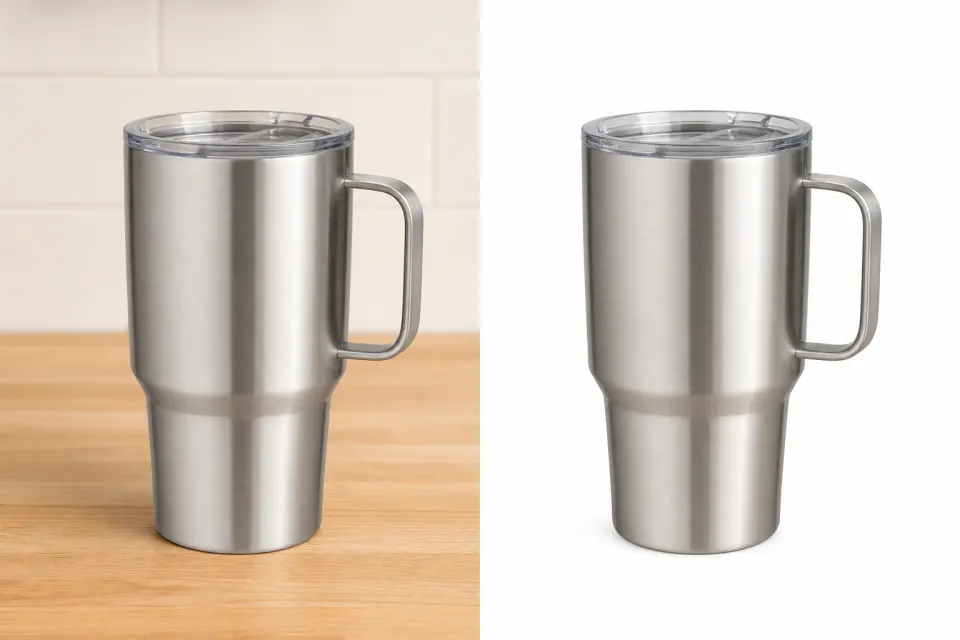
Look inside handles, mesh, enclosed spaces, and irregular outlines where leftover parts of the original scene can be easy to miss.
- Clean interior gaps
- Complete handles and straps
- No visible background fragments


Review 04
Review the crop, spacing, and contact area.
Check the space around the subject and its contact area so the result suits the layout or destination where it will appear.
- Useful surrounding space
- Appropriate final crop
- Review before download
Swipe to review each example
Try It With Your PhotoResult review
Keep attention on the subject, not the old scene.
Review fine outlines, small details, and the boundary around the subject before using the finished image.
- Clear subject separation
- Complete visible outline
- Clean white field
Choose the right final background
When a White Background Is the Right Choice
A white background works best when the final image needs a neutral, visible field for a product listing, profile, document, catalog, or similar layout. Choose another workflow when transparency or a specific setting is the final requirement.
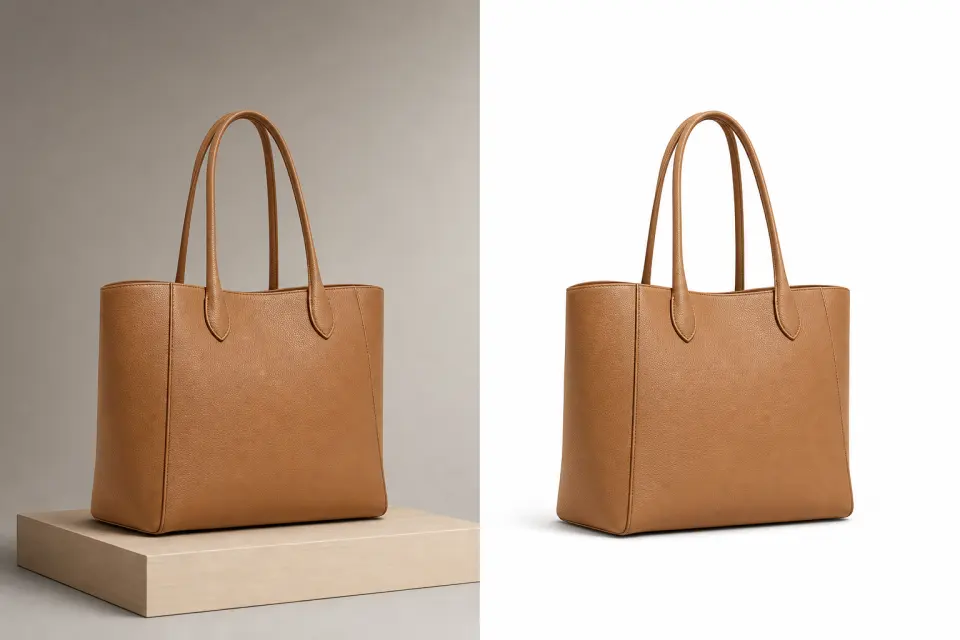
White is a good fit when
- A product catalog needs a consistent, distraction-free image field across related listings.
- A profile, headshot, or document workflow calls for a simple visible white background.
- The final layout benefits from a clean presentation without another scene competing for attention.
- You need a neutral image asset to hand off for a catalog, presentation, or design layout.
When to use another path
- Choose a transparent background when the asset needs to sit over a color, graphic, or existing page background.
- Replace the background when a campaign, storefront, or social image needs a specific color or scene.
- Use the dedicated video background workflow for moving footage rather than a single still image.
Built for a focused workflow
A Faster Way to Create a Clean White Background
Move from upload to a finished result in one focused online workflow, with a clear preview before you save the image.
Swipe to explore the workflow
Use it your way
White Backgrounds for Work, Selling, and Everyday Projects
Create clean, consistent photos for online selling, professional profiles, official applications, catalogs, and other visual projects.
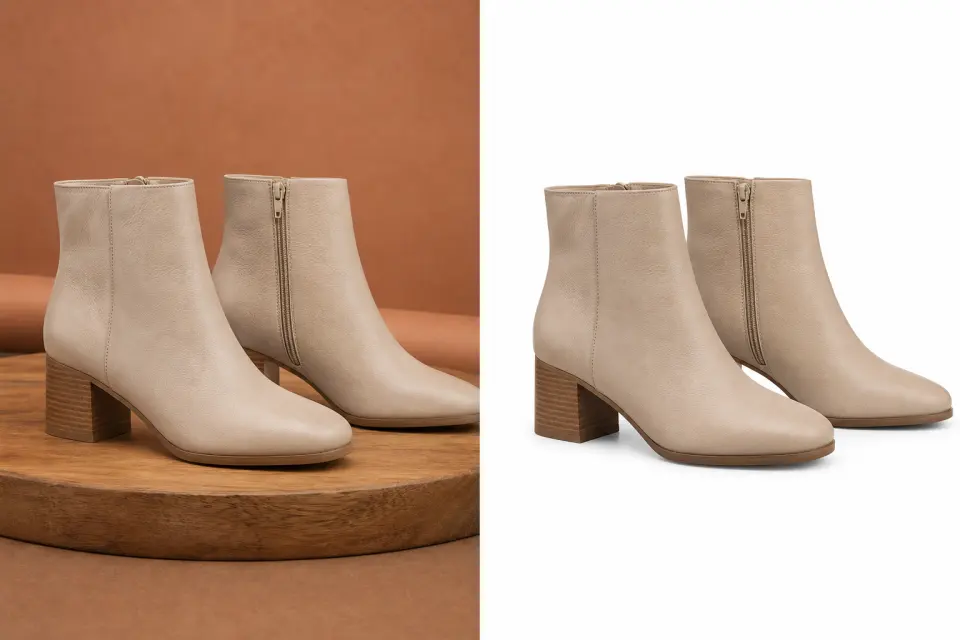
For product listings
Build a more consistent product catalog
Prepare product images for online stores, marketplace listings, catalogs, and inventory systems.
- Check whether each SKU has a consistent crop and amount of surrounding space.
- Review light packaging, reflective surfaces, and contact areas before publishing.
- Verify the destination platform's current image rules separately.
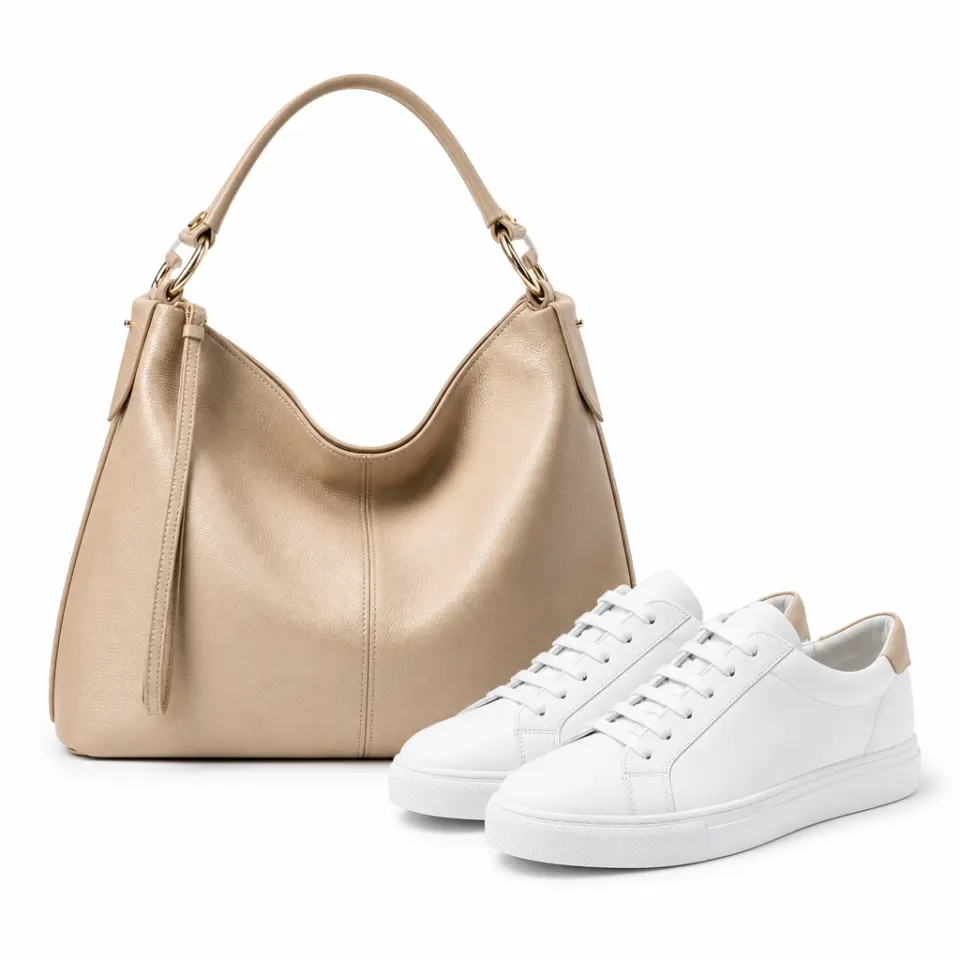
For professional portraits
Create a cleaner setting for a portrait
Replace distracting surroundings with a simple white background for headshots, resumes, profile pages, and company directories.
- Keep the head, shoulders, and hairline fully visible in the intended crop.
- Inspect light clothing and highlights that may blend into the new background.
- Review the final crop in the context where the portrait will appear.
For passport-style photos
Start with a simple white field
Change a portrait background to white, then check the official size, framing, lighting, and photo requirements for your application.
- Use the white result as a preparation step rather than proof of acceptance.
- Confirm the authority or service's current photo requirements yourself.
- Check dimensions, head position, clothing, and submission file rules before sending.
For flexible visual assets
Keep layouts focused and flexible
Prepare objects, food, clothing, graphics, and handmade items for catalogs, presentations, menus, and marketing layouts.
- Check whether the crop leaves enough room for the final composition.
- Use a transparent or color-background workflow if white is not the final destination.
- Keep the white result as a useful asset for the next layout stage.
Swipe to explore each use case
Choose your workflow
Choose the Background Workflow for Your Final Use
Start with the use that best matches your final asset. Each path helps you decide whether a white background, a replacement background, or a dedicated video workflow is the right next step.
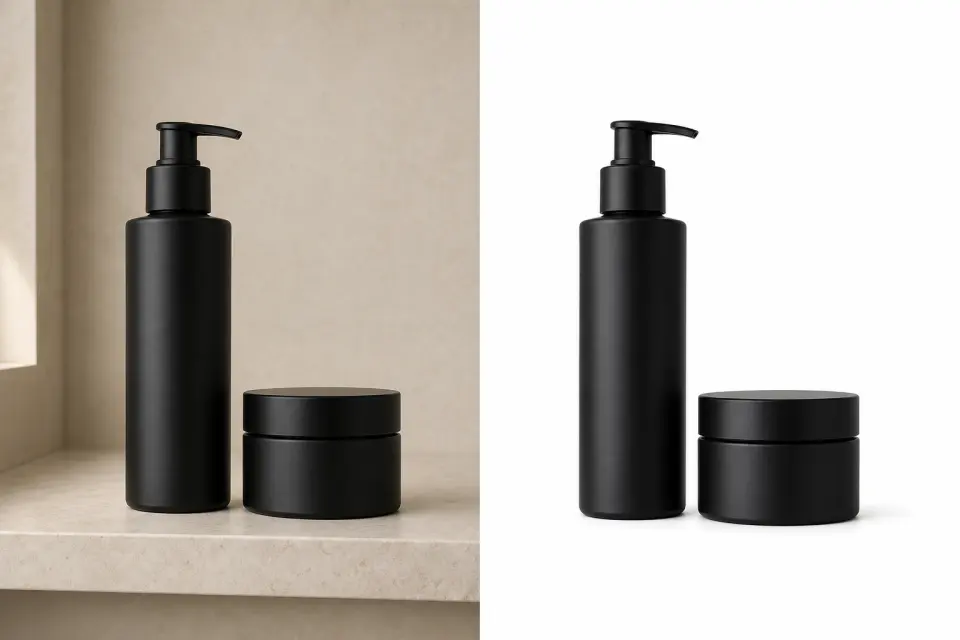
01 · For product listings
Prepare a consistent product image
Use a clean white result for a listing, or continue to a background replacement workflow when the final storefront image needs another setting.
- Review the full item, crop, and surrounding space.
- Check reflective packaging and light-colored edges.
- Confirm the destination platform's current requirements.

02 · For headshots and documents
Keep the person clear against a simple background
Review hair, shoulders, pale clothing, and the final crop before using a white result in a profile or document workflow.
- Keep the head and shoulders fully visible.
- Inspect light details against the new background.
- Check official requirements separately when they apply.

03 · For flexible visual assets
Move from a clean cutout to the right final setting
Use a white result to assess the subject, then continue to background replacement when a campaign, storefront, or social layout needs another scene or color.
- Review crop and space for the final composition.
- Choose white only when it suits the final layout.
- Continue to background replacement for another setting.

04 · For moving subjects
Use a dedicated workflow for a video background
A moving subject needs its own review process. Continue to the video workflow when you need to remove or replace the background across a complete clip.
- Review changing edges across the full clip.
- Choose a final background that fits the intended video.
- Use the dedicated video route for moving footage.
Swipe to choose the right workflow
Better source images
Tips for Better White Background Results
The quality of the original photo can affect the final result. Use these checks before downloading your image.

- 01
Start with a clear photo
Choose an image with good lighting, visible subject edges, and enough resolution for the intended use.
- 02
Keep the complete subject visible
Avoid source images that cut off important parts of the product, person, or object.
- 03
Check light-colored details
White products, pale clothing, highlights, and fine hair can blend into a white background. Preview these areas closely.
- 04
Review shadows and openings
Check contact shadows, handles, interior gaps, and small openings for leftover parts of the original background.
- 05
Confirm crop and spacing
Leave enough white space around the subject and make sure the final framing matches your intended platform.
Before publishing
Prepare the image for the place where it will actually appear
The white-background edit is one stage of the workflow. Use the final destination to decide what to inspect next, and check that destination's current rules before you publish.
Prepare the source image first
- Use even light and a clear subject whenever possible so important edges are easier to review.
- Keep the whole subject in frame and avoid a crop that removes a useful product or portrait detail.
- Compare the complete result at the size and context where the image is intended to appear.
Product listing or catalog
Product photo guideFocus on consistent framing, product edges, scale, and the full visible item across related SKUs.
Check before publishing: destination background rules, crop, dimensions, file type, and the visibility of product details.
Storefront, campaign, or social asset
White image workflowUse the white result to decide whether the subject has enough negative space and whether white is the best final background for the layout.
Check before publishing: layout crop, text-safe area, final background choice, and the visual treatment of shadows.
Passport-style or identity photo
Passport photo notesUse the white-background result as one preparation step, then verify the authority or service's current instructions before submission.
Check before publishing: background specification, dimensions, head position, expression, clothing, and submission file rules.
Clear expectations
Your Files and Background Edits
Swipe for file details
Need a different background workflow?
Continue with a related tool or resource when a visible white background is not the final result you need.
Pricing That Fits Every White-Background Workflow
Start free, choose a recurring plan for steady production, or buy credits when you only need a few clean white-background exports.
MonthlyYearlySelect Plan
Buy CreditsCurrent BalanceCreditsPopularBuy Now
Common questions
Questions About Making a Background White
Find answers about changing a photo background to white, supported files, output color, image quality, and upload processing.
Upload a supported image, start the background process, and preview the subject on a white background. Check the edges and crop, then download the finished image.
Upload your image and let the AI separate the main subject from the original scene. The tool then adds a clean white background that you can preview before downloading.
The white background workflow places the subject on a clean pure white field. Preview the result before downloading to make sure it matches your intended use.
No. A white background is a visible white color. A transparent background has no visible color and allows another color or design to show through it.
The image uploader supports PNG, JPG, JPEG, and WebP files up to 10 MB.
White products, pale clothing, fine hair, and bright highlights can blend into the new background. Preview light-colored edges closely before downloading.
Uploaded files are processed for the requested background edit and removed from active processing storage after the result is generated.
You can start with the free option shown in the pricing section. Processing limits, export options, and available features depend on the current plan.
Ready when you are
Change Your Photo Background to White
Upload an image, remove the original scene automatically, and add a pure white background. Preview the result, check the details, and download your finished photo.