How to Make an Image Background Transparent
Remove the original scene, inspect the checkerboard preview, and prepare the cutout for a layered design.
Upload PNG, JPG, JPEG, or WebP up to 10 MB. Transparency quality depends on the source edges.

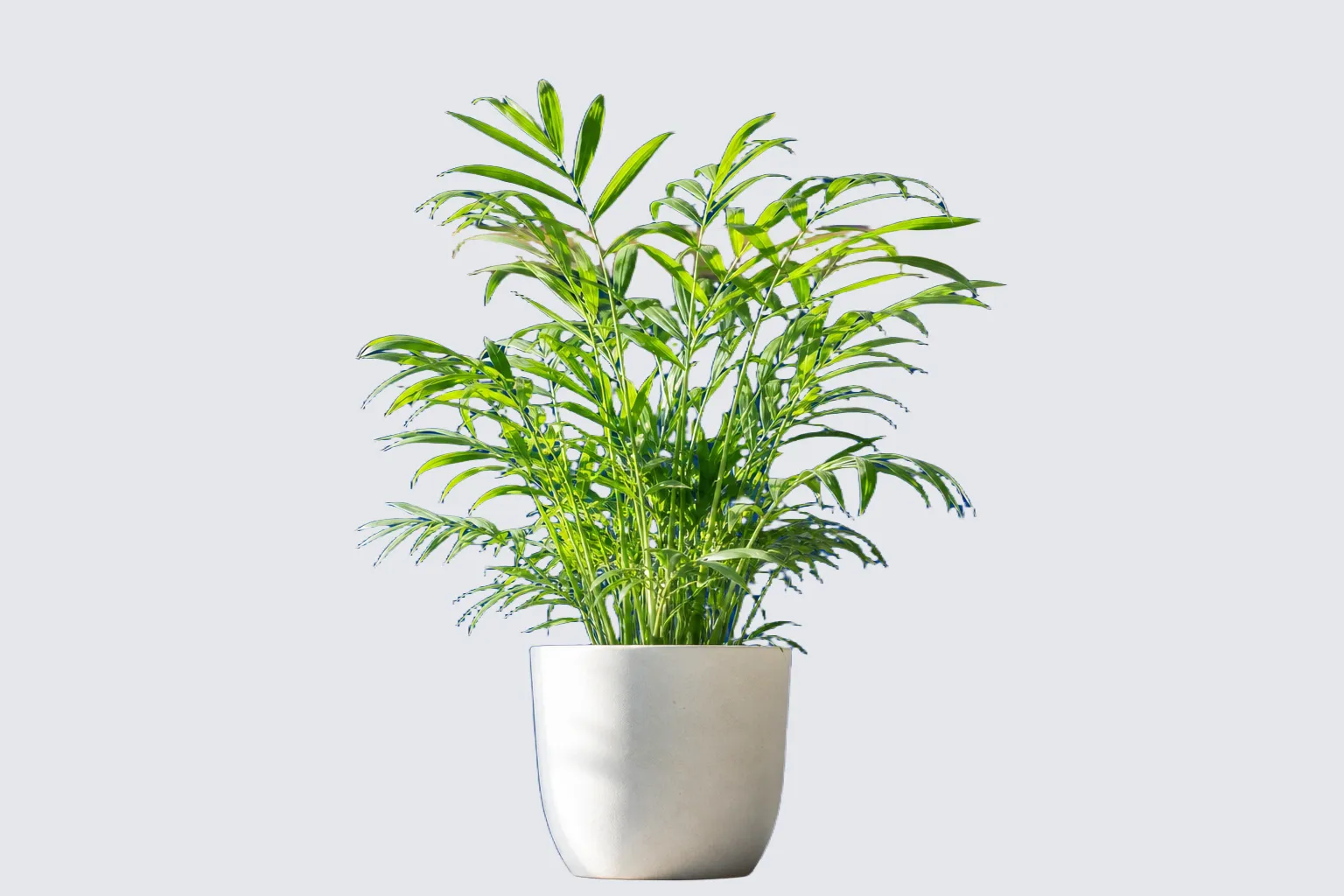
Transparent background example
Inspect transparency against the original scene
Use the contrast between source and cutout to inspect fine hair, pale edges, and enclosed spaces.
 Original image
 Transparent-background result
This transparent-background comparison is a temporary visual reference for edge inspection.
Use transparency without unwanted outlines
Check the cutout against more than one background before publishing.

Fine hair and fur
Inspect strands where the source colors were close to the background.
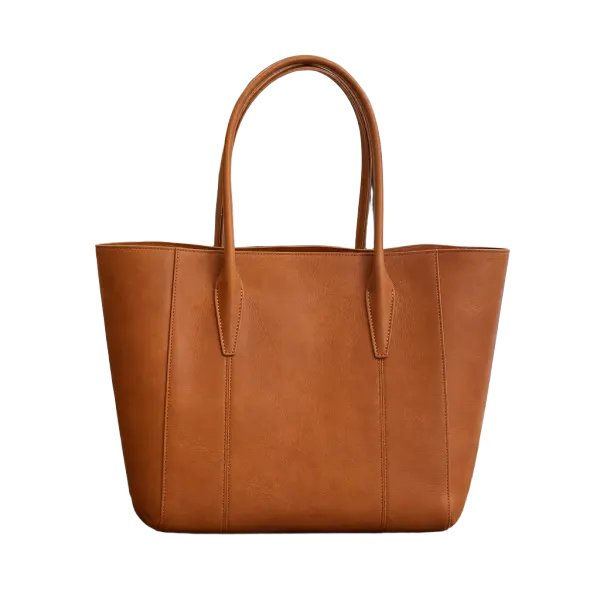
Light-colored boundaries
Preview against a darker color to reveal light fringes.
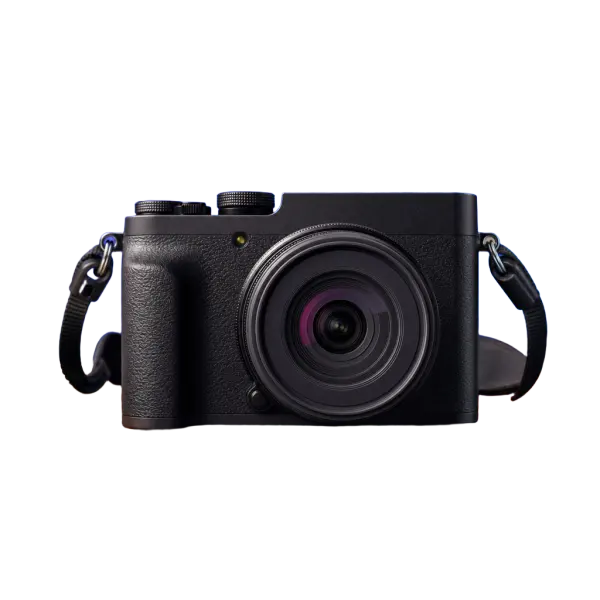
Interior spaces
Check handles, letters, and other enclosed areas for leftover background.

Choose the destination first
Judge the transparent cutout against the color or image where it will actually appear.
Prepare an image for a transparent layout
Inspect the checkerboard cutout against its real destination before deciding it is ready.

Choose an image for transparency
Choose a supported still image up to 10 MB.

Remove its background
Process the image and view the isolated subject over the transparency preview.
Inspect and use the cutout
Check the edges, then place it into the intended layout or choose a new background.
Where transparent cutouts are commonly placed
Products, portraits, and graphics each expose different edge or interior-space problems.

Layer-ready
Place isolated products into listings and layouts.
Current scope
Products

Flexible placement
Use the subject in a new scene or graphic.
Current scope
Portraits
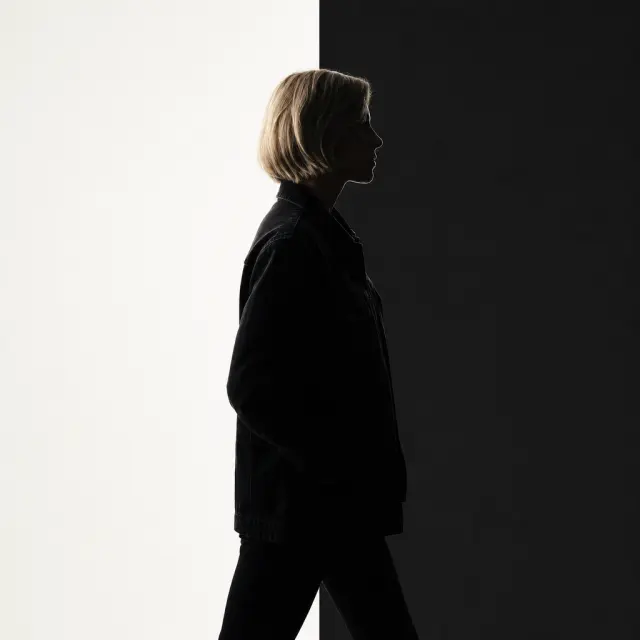
Check fine shapes
Inspect small details before placing the asset.
Current scope
Logos and graphics
Transparent image background questions
Answers explain checkerboards, JPG limitations, light outlines, later replacements, and accepted image inputs.
How to Make an Image Background Transparent
Open the image workspace to isolate the subject and review transparent areas.