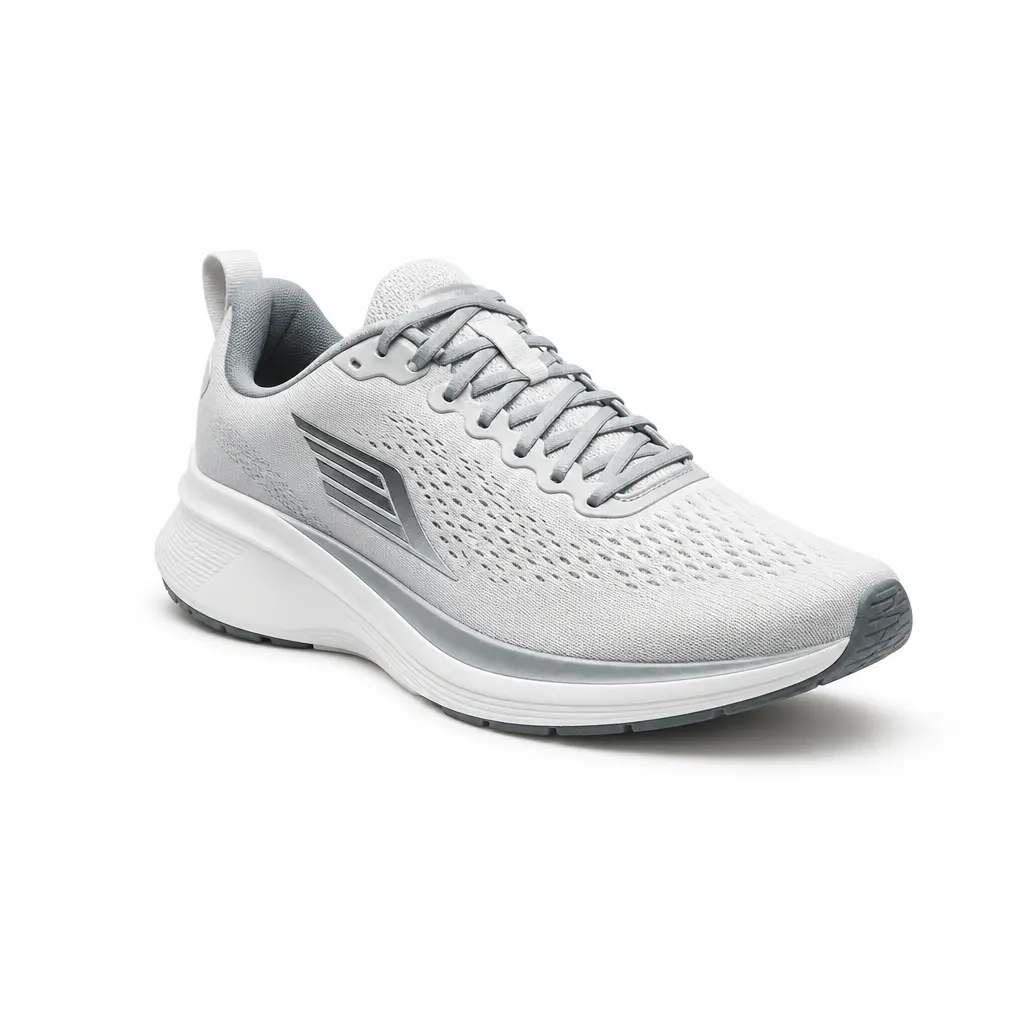


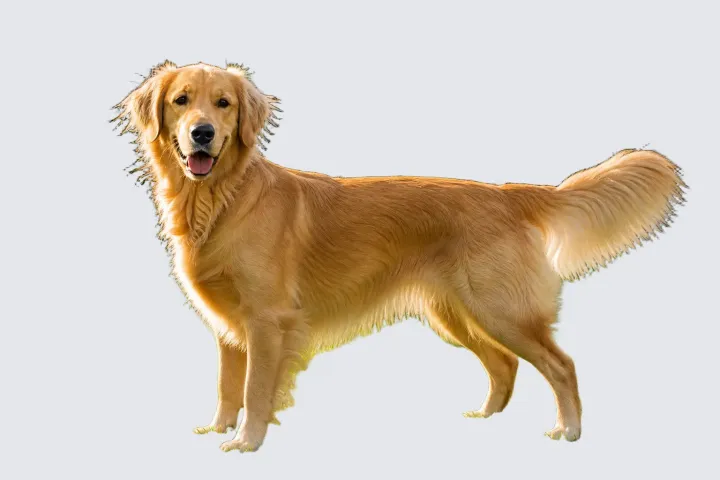
Hair, fur, and fine edges
Compare the outline at full size where strands cross the original background.
Use this comparison to locate edge and interior-gap checks for a still-image cutout.
Upload an image to isolate the subject, inspect the cutout, and choose transparency, a color, or another image.
PNG, JPG, JPEG, or WebP — up to 10 MB. Results vary with edge contrast and source quality.
Upload an image to isolate the subject, inspect the cutout, and choose transparency, a color, or another image.
PNG, JPG, JPEG, or WebP — up to 10 MB. Results vary with edge contrast and source quality.
Cutout proof points
Use more than one visual check so a clean thumbnail does not hide a difficult edge or interior gap.
Compare the outline at full size where strands cross the original background.
Use this comparison to locate edge and interior-gap checks for a still-image cutout.

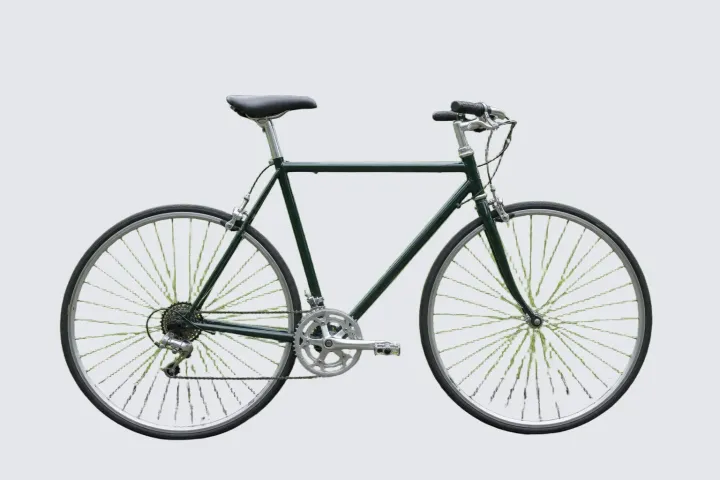
Inspect narrow parts, handles, and enclosed spaces before placing the subject elsewhere.
Use this comparison to locate edge and interior-gap checks for a still-image cutout.
Start with the destination so you can judge the cutout in context.

Keep the isolated subject ready for layered layouts.
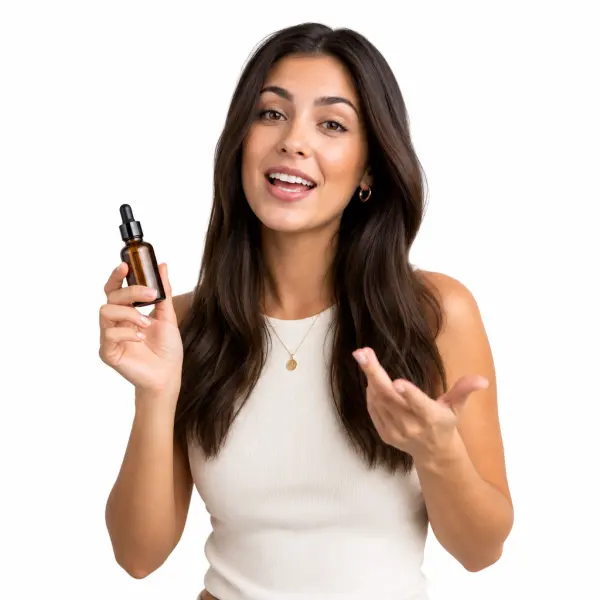
Place the subject on white and review pale edges and natural contact areas.

Continue to a replacement image when the original setting is distracting.

Keep shoulders, hair, and clothing edges readable before placing a portrait into a new design.
Inspect the areas where foreground and background are hardest to separate.

Zoom in where fine strands cross a similar-colored background.

Check straps, spokes, jewelry, and narrow gaps for missing detail.

Inspect interior spaces and decide whether a soft shadow should remain.
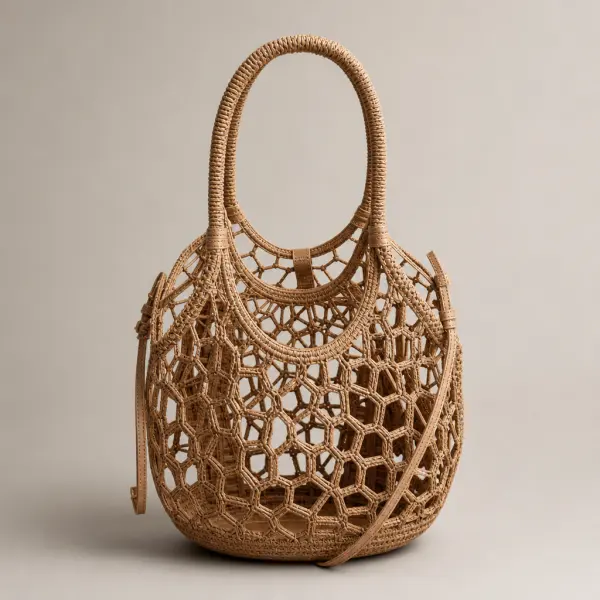
Inspect handles, mesh, and negative space where the former background should remain empty.
Use a focused workflow instead of forcing every background task into one page.
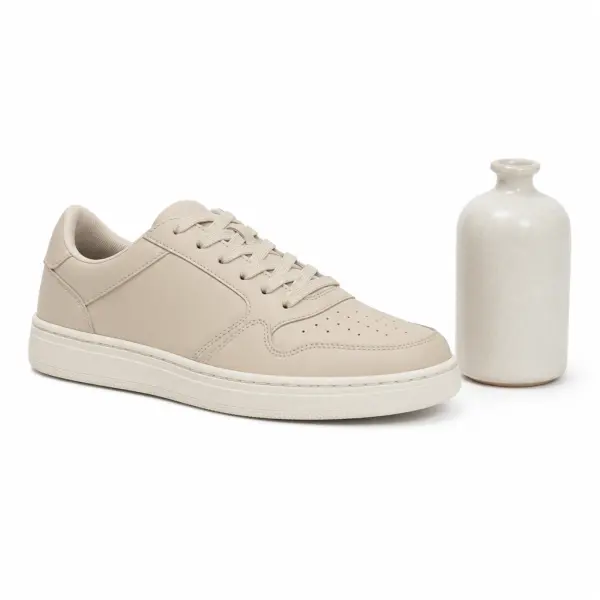
Use the white-background workflow when the final asset needs a clean white field.
Open the white-image guide
Preview a solid color or another image behind the cutout.
Open the image changer
Use the transparent-background guide to understand checkerboards and PNG transparency.
Read the transparency guide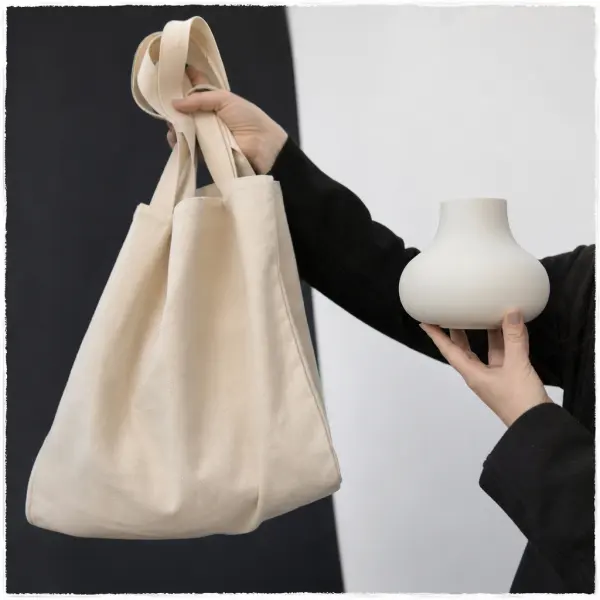
Use the white-removal guide when a pale source field creates halos around the subject.
Review white-source removalCheck the supported source, the complete cutout, and the intended background state before reuse.

Use a supported still-image file up to 10 MB.
Current scope
Input

Check the complete subject before using the result.
Current scope
Review

Choose the background state that fits the final layout.
Current scope
Output choice
Before you open the workspace, these checkpoints explain where the online tool fits, what file and quality limits to expect, and how uploads are handled.
Uploaded photos and videos are processed for the requested background edit, then removed from active processing storage after the result is generated.
Current scope
Temporary processing
Use JPG, PNG, WebP, MP4, or MOV files depending on the workflow. Very low-resolution sources, heavy blur, or extreme motion can limit final edge quality.
Current scope
Format-aware exports
The AI workspace is best for fast, repeatable background edits; manual Photoshop-style masking still helps when a file needs pixel-level art direction.
Current scope
Faster than manual masking
Product photos, portraits, passport-style images, and short clips work best when the subject is clear, well lit, and not heavily obstructed.
Current scope
Use-case fit check
Start free, choose a recurring plan for steady production, or buy credits when you only need a few clean white-background exports.
Answers cover upload limits, transparency, white output, edge checks, mobile access, and the separate video route.
Move from source upload to edge review before choosing transparency or a replacement.
Choose a supported still image up to 10 MB.
Let the workspace isolate the subject from its surroundings.
Inspect edges, then keep transparency or choose a new background.
Open the image workspace when you are ready to isolate a subject and inspect its edges.