Background Color Changer for Photos
Remove the original photo background and preview white or another solid color behind the subject.
Use a supported image up to 10 MB and inspect contrast around the complete subject.
Remove the original photo background and preview white or another solid color behind the subject.
Use a supported image up to 10 MB and inspect contrast around the complete subject.
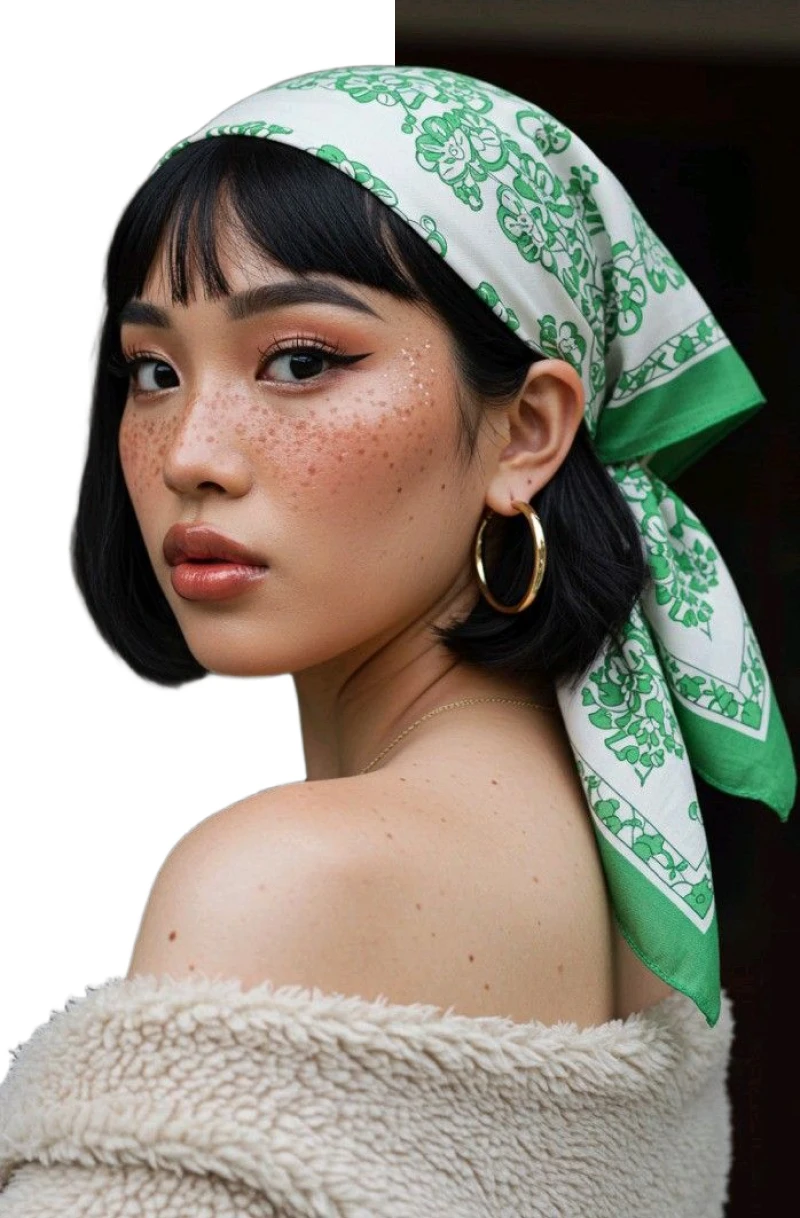

Background color changer example
Compare the original scene with the selected solid color
Compare the source and colored result to find pale edges, fine details, and contrast problems.
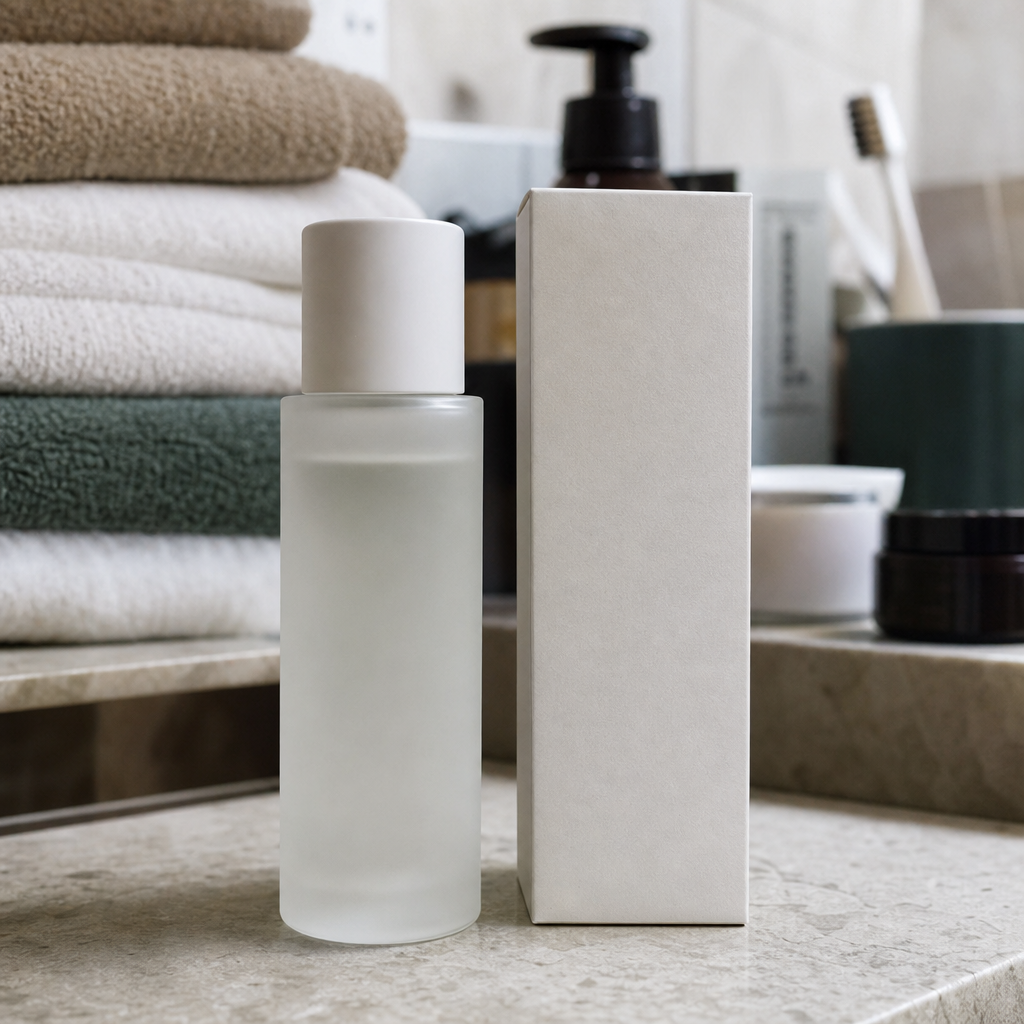 Original photo
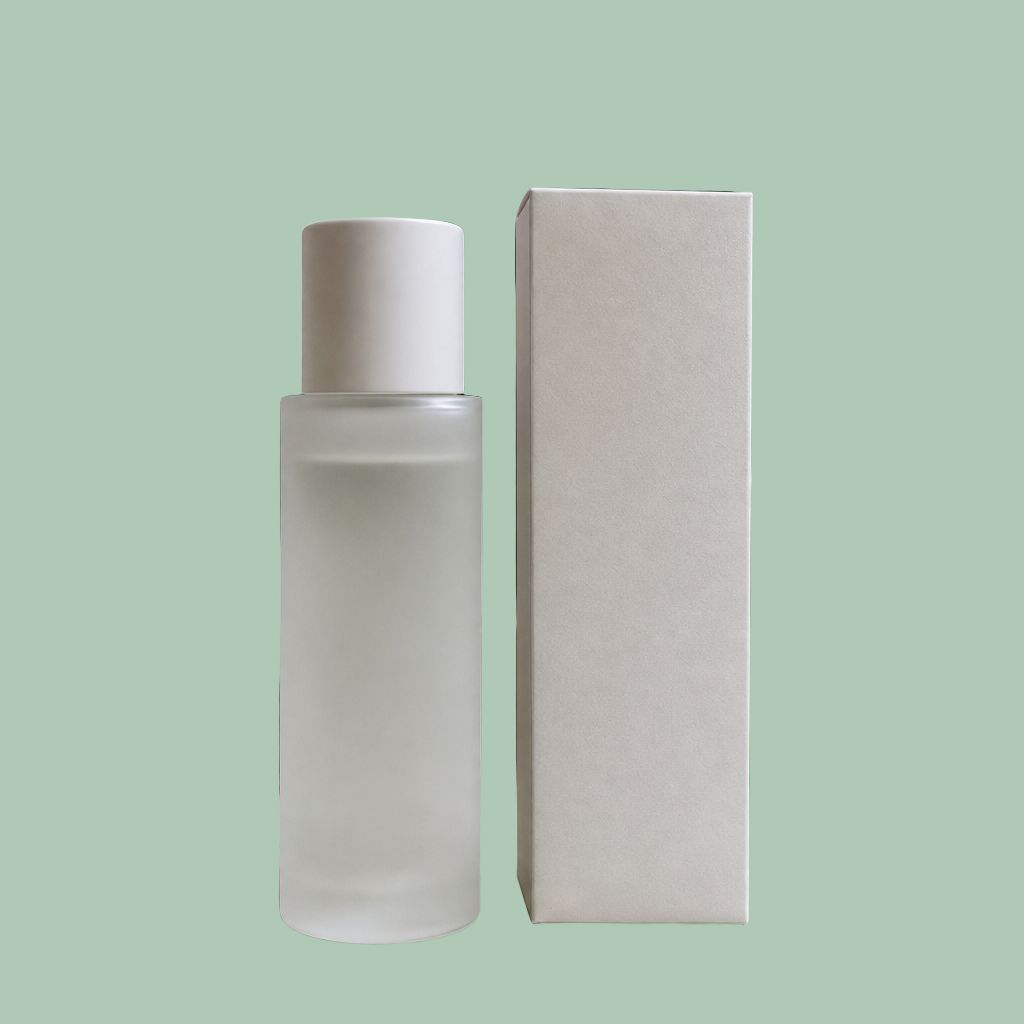 Color background
This color-change comparison remains a visual review aid until dedicated page imagery is supplied.
Choose a background color that fits the image
Color affects edge visibility, subject separation, and the overall purpose of the photo.

White for a neutral result
Review pale products and clothing so details remain visible.

A palette color for a layout
Choose a color that supports the surrounding design without obscuring the subject.
High contrast for clarity
Compare light and dark options around fine edges before deciding.
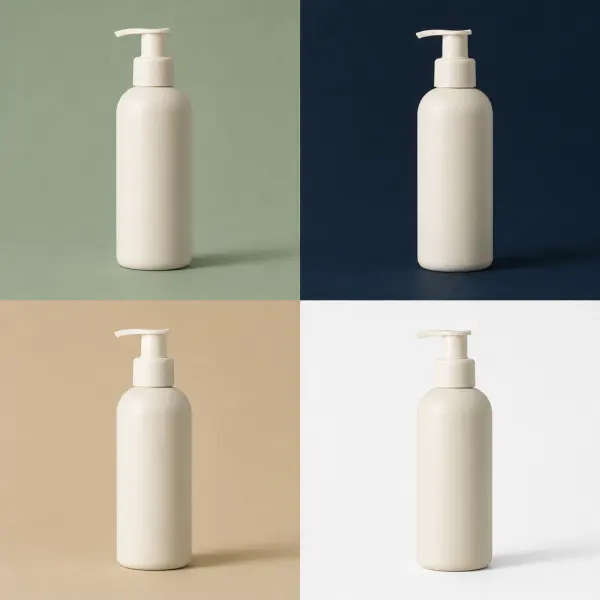
Brand colors with readable edges
Test the chosen palette color against the subject outline before using it in a branded layout.
Change a photo background to a solid color
Isolate the subject, select a color, and inspect the boundary at more than one contrast level.
Upload a photo for recoloring
Choose a PNG, JPG, JPEG, or WebP image up to 10 MB.
Separate the subject from its scene
Isolate the subject so a solid color can sit behind it.
Select a color and review
Compare the result around pale edges, fine detail, and shadows.
Contrast checks for a solid background color
Light subjects, dark subjects, and fine details respond differently to the selected color.
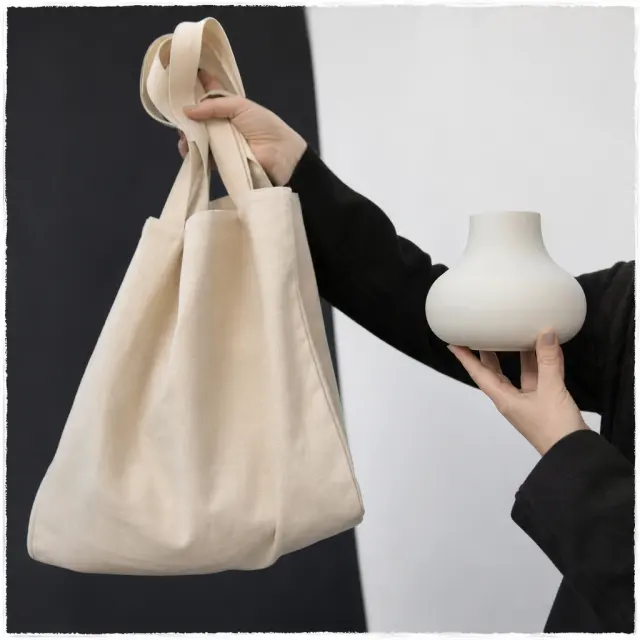
Check on white
Inspect light edges and highlights.
Current scope
Pale subjects
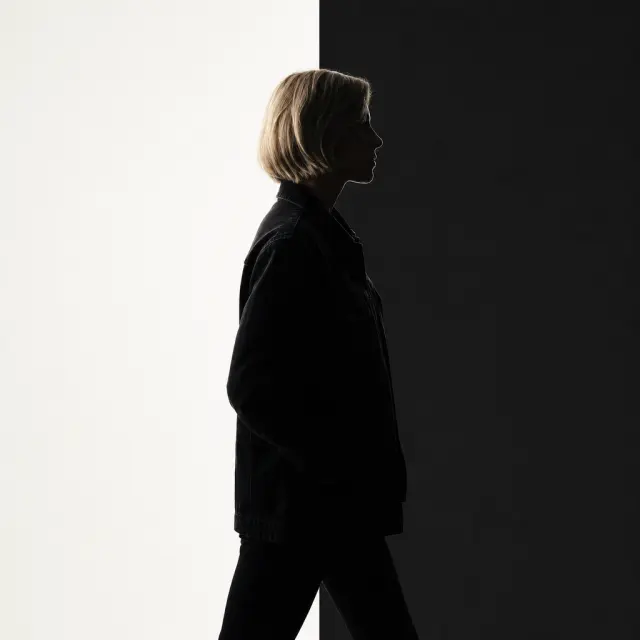
Check on dark colors
Keep the silhouette readable.
Current scope
Dark subjects
Zoom in
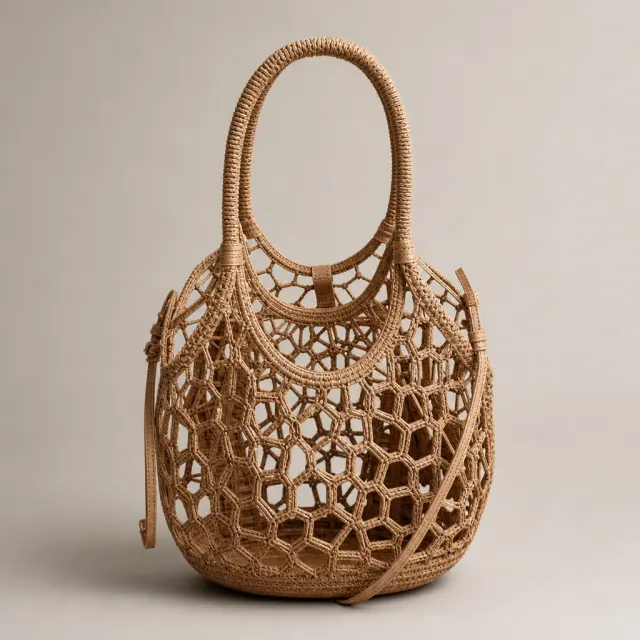
Review hair, straps, and interior gaps.
Current scope
Fine details
Quality, Privacy, and Workflow Checks
Before you open the workspace, these checkpoints explain where the online tool fits, what file and quality limits to expect, and how uploads are handled.
Upload privacy and file deletion
Uploaded photos and videos are processed for the requested background edit, then removed from active processing storage after the result is generated.
Current scope
Temporary processing
File formats and quality limits
Use JPG, PNG, WebP, MP4, or MOV files depending on the workflow. Very low-resolution sources, heavy blur, or extreme motion can limit final edge quality.
Current scope
Format-aware exports
Online tool vs manual workflow
The AI workspace is best for fast, repeatable background edits; manual Photoshop-style masking still helps when a file needs pixel-level art direction.
Current scope
Faster than manual masking
When the result is ready to use
Product photos, portraits, passport-style images, and short clips work best when the subject is clear, well lit, and not heavily obstructed.
Current scope
Use-case fit check
Pricing That Fits Every White-Background Workflow
Start free, choose a recurring plan for steady production, or buy credits when you only need a few clean white-background exports.
Photo background color questions
Answers cover white, transparency, color choice, accepted images, and when to use another photo instead.
Background Color Changer for Photos
Open the color workflow and compare the full subject against the chosen solid field.